

If you’re like most folks who are now working from home, chances are you may be dreaming of a new business idea, thinking about starting a home-based company, or considering an upgrade to your existing small business. But where do you start?
A good place to begin is with a custom email domain (for example: [email protected])
In this post, we’ll look at some of the benefits of using a professional email address, and tips on how to set up a custom email domain for a new (or existing) small business.
What is a Custom Email Domain? Why should I use one?
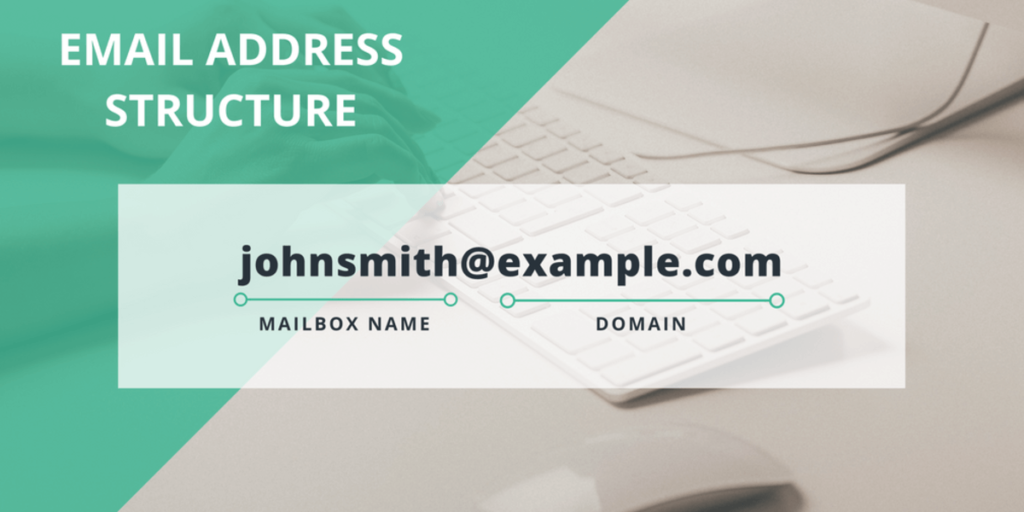
A custom email domain uses a specific domain name instead of a generic one. For example, [email protected] is a custom email address, whereas [email protected] is a generic free business email address (using Google’s free email service, Gmail).
Why should you use a custom email domain? A custom email domain looks more professional than a free email address, and gives credibility to your business while helping to promote your brand.
Additionally, business email services typically offer advanced productivity and security features that are not available with free email services (more on this later).
Best of all, setting up a customized, feature-rich business email platform isn’t too difficult or expensive. We’ve outlined the basic steps below.
1. Search for a Custom Email Domain
If you don’t already own a custom email domain that you can use for your business, now is the time to start searching for one and register the domain name that you want – before someone else grabs it from you!
You can do the search using a domain registrar company such as GoDaddy or our preferred company, NameCheap.
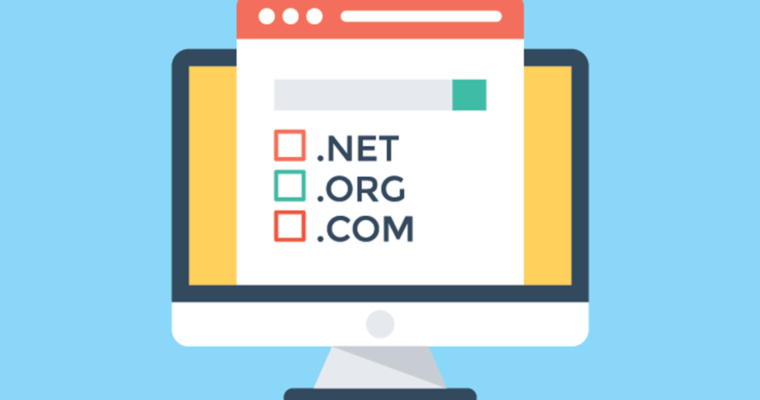
When you’re searching for domain names, keep in mind that you have many “top-level domain (TLD)” options available to you, beyond the typical .com and .net choices.
Consider searching for other possible versions of your desired domain name, using TLDs such as:
- yourdomain.co
- yourdomain.ai
- yourdomain.app
TLDs like this are shorter and trendier, and there’s a better chance that you’ll find a version of your desired domain name that hasn’t already been registered by someone else using the .com or .net TLD.
Once you’ve found a domain name that is available, the next step is to buy (register) the name. (If you already have a domain name, you can skip the next step)
2. Buy (Register) a Custom Email Domain, and Enable Privacy
So you’ve found the perfect domain name, and it’s available (unregistered) – great!
The next step is to buy (register) the domain. Registering a domain name isn’t very expensive – expect to spend about $1 per month or less. It’s important to note that when you “buy” a custom email domain, you don’t actually own it outright – you’re simply paying a domain registrar company like GoDaddy or NameCheap to “host” it for you.
We recommend that you register one or more domain names for a minimum registration term of 1 year (you can also save a few bucks if you register the name for 3 or 5 years).
TIP: If you’re just starting out, don’t buy any extra products or services yet – just register the domain name. Make sure Privacy is included! Some registrars (like GoDaddy) charge extra for Privacy, while others (like NameCheap) include Privacy at no extra charge.
Privacy is important because if it’s NOT enabled, anybody can lookup your domain name registration data and be able to view the full name, address, and phone number that you used when you registered the domain name – which you definitely don’t want. Be sure to enable Privacy for your domain!
3. Sign up with a business email service provider
So you’ve purchased and registered your brand new custom email domain name, and you’ve protected your personal information by enabling domain name privacy – well done!
However, a domain name on it’s own is pretty useless, and it won’t send or receive emails all by itself. For that, you’ll need to sign up with a business email service provider.
Although there are many providers out there, by far the two most popular services for small business customers are Google G Suite and Microsoft 365 (formerly Office 365).

Whichever business email service provider you decide to go with, what’s important here is that once you sign up for the service (which starts at around $6 per user, per month) you’ll have a professional-grade email server hosted in the datacenter of a big tech company – and access to extremely reliable, robust, and secure email services.
4. Set up your custom email domain with your email service provider
Domain name registered? Check. Email service provider account created? Check.
The next critical step: set up your custom email domain to be able to send and receive emails, by linking the domain to your email service provider account.
The exact steps to take here are somewhat technical, vary by provider, and require that you modify your domain’s DNS records – which is not something to be undertaken lightly if you’re unfamiliar with TXT and MX records.
The good news is that Google and Microsoft provide very detailed instructions for completing this crucial step. (For the technically-inclined, you can find the Google instructions here, and the Microsoft instructions here)
5. Send (and receive) a test email using your new account
If you’ve done the above steps correctly, you should now be able to send and receive emails using your brand new custom email domain!
Go ahead test it: log in to your new email account ([email protected]) and use it to send an email message to your friend, or to another inbox you own. Verify that the message arrived in the correct inbox.
Next, either reply to that message or send a new one to your new email account. Verify that the message was received in your new inbox.
Congratulations – you now have successfully tested your new email account using a professional, custom email domain!
6. Stop using the old account, start using the new account
Believe it or not, the steps outlined above are the easy part of setting up a custom email domain!
The really hard part of setting up a new email account? It’s actually getting people to use your new email address, and to stop using the old address (this can be made easier by using forwarding rules and auto-replies with the old email account).
You should also update all of your accounts where you still use your old email address. Most companies will let you change your primary email address that you have associated with your account – this is a tedious process, but at least it’s one that you have control of.
More information
Some other aspects to consider when setting up a custom email domain for a business include:
- Configuring effective spam filtering to block spam email messages, malicious attachments, and phishing attacks;
- Setting up SPF, DKIM, and DMARC authenitcation policies to prevent attackers from spoofing your domain;
- Enabling multi-factor authentication on your account to protect against credential theft;
- Using your business email account on your mobile device;
- Migrating email messages, folders, and attachments from your old email server to your new one.
If you need any help with your business email systems, contact us.
